How to use CoMaps: A beginner's guide in 2026
In this beginners guide, I'll tell you everything you need to know to get started using CoMaps in 2026!
This guide was written for the 2026.07.16-10 version of CoMaps. Later versions might be different. Always check out our support page for the most up-to-date instructions and information.
What is CoMaps?
CoMaps is an offline-first map and navigation app for travel all over the world. It's open source, and very private. We don't want to collect data about where you live, where you go, or who you are, unlike many other navigation apps out there. In fact, when you use any of CoMaps' many offline features (search and navigation included), your data isn't even being sent anywhere.

Map data in CoMaps comes from various crowdsourced projects, including OpenStreetMap and Wikipedia. If you don't know what crowdsourced means, here's an article that provides the definition.
How do I get CoMaps in 2026?
Go to the CoMaps Download page. If you have an iPhone, you can find CoMaps on the App Store. If you have an Android phone, you can find CoMaps on the PlayStore. For those of you with a custom Android ROM like GrapheneOS, LineageOS, or others, F-Droid, IzzyOnDroid, and Obtanium are all good options.
How do I download maps in CoMaps?
CoMaps uses map files that make up all the map data you see. There's the world map, which has most of the major cities around the world, and various maps broken down by country, region, etc (although map data is broken up by map size as well as by geographic area, so you might find maps are broken up strangely to you).
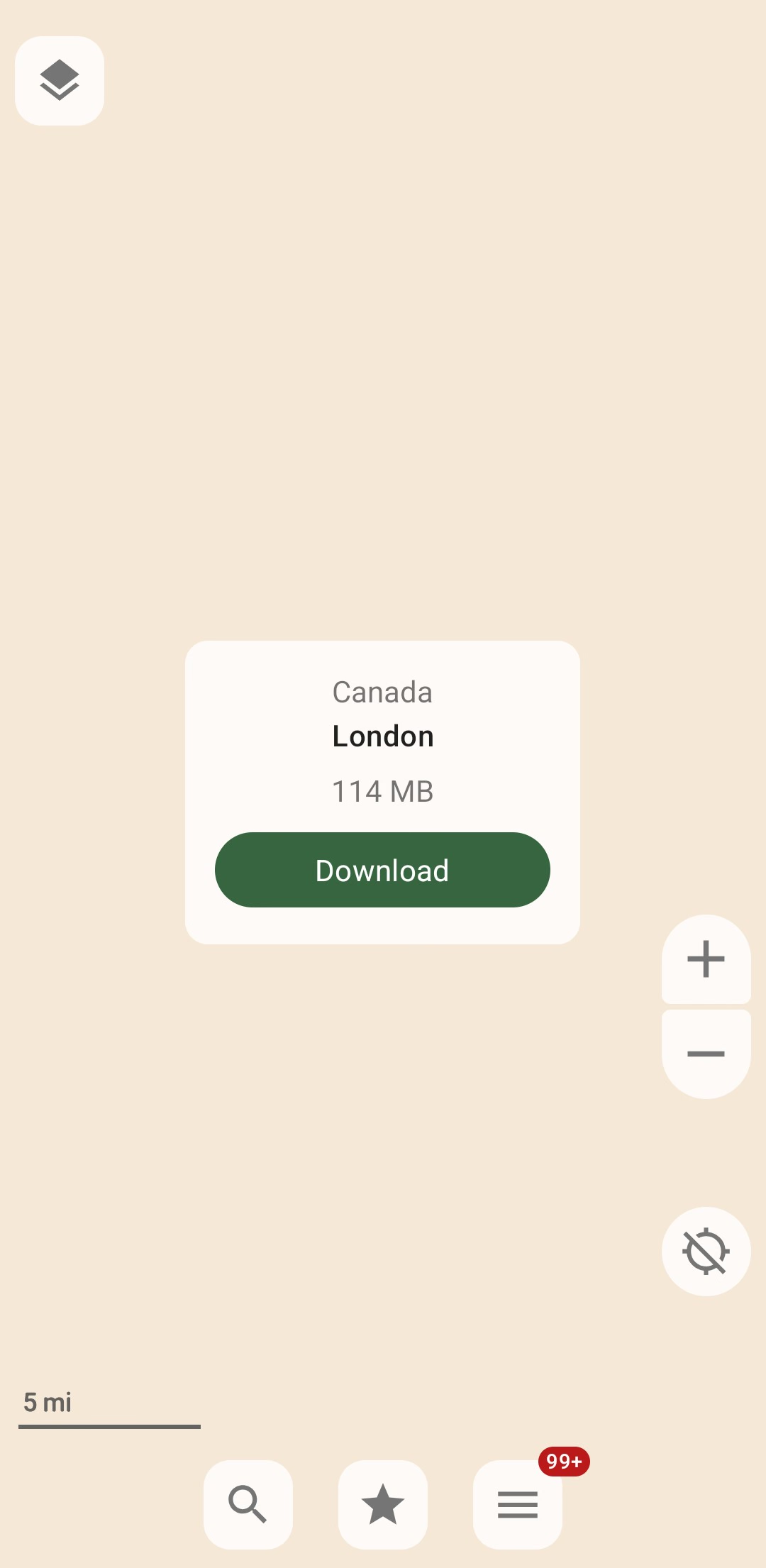
One way to download maps in 2026 is to zoom into the areas you want maps of. If you zoom in far enough and don't have that map yet, CoMaps will prompt you to download it. You will also be prompted to download maps if you calculate a route that needs to go through maps you don't have yet.

How do I use the Maps Download screen?
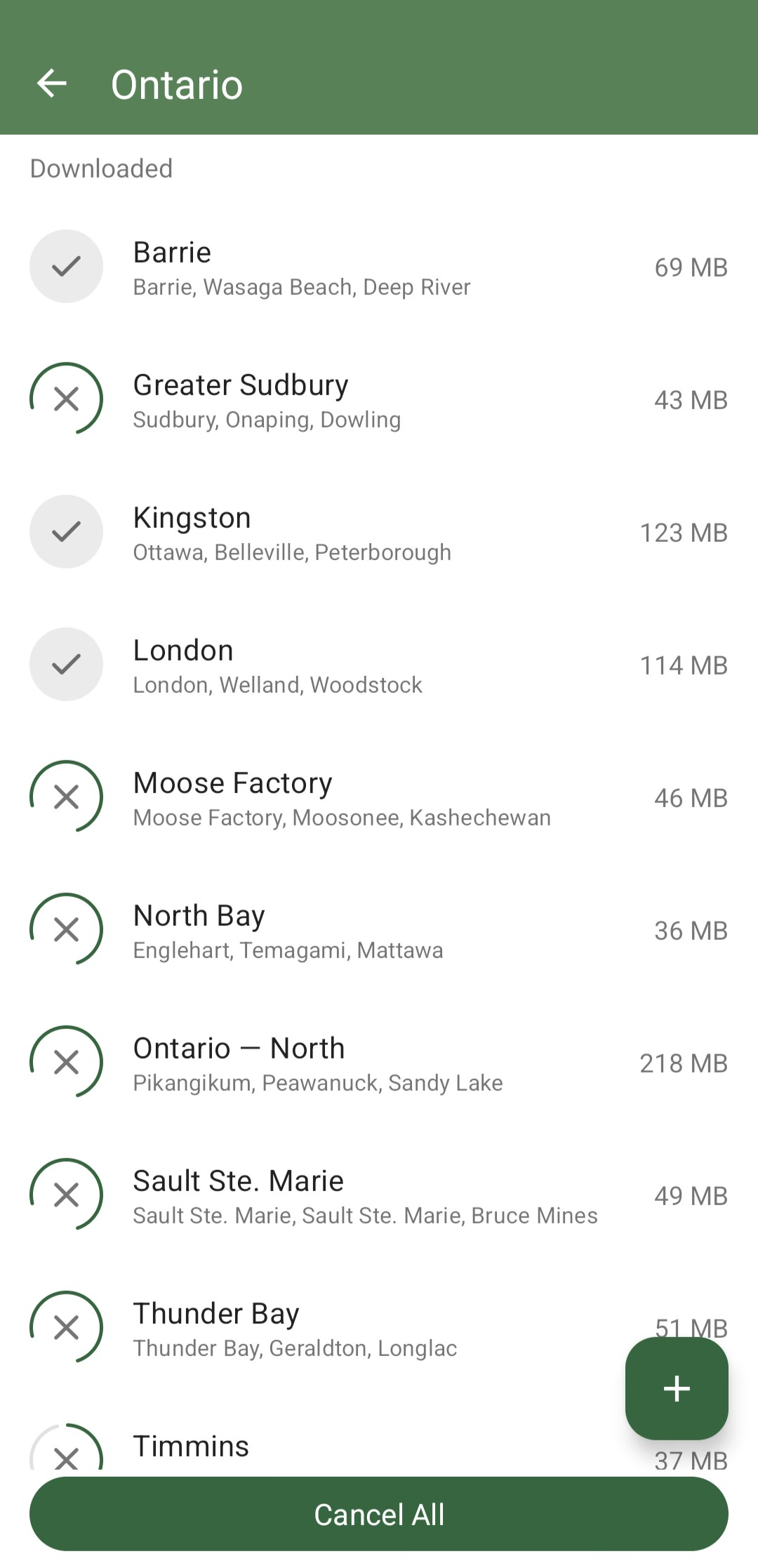
The fastest way to download multiple map files is go to the Maps Download screen. You can get there by clicking the menu/sandwich icon at the bottom of CoMaps. Once on that screen, tap the big green + button to download new maps.

Other things to know about the Maps Download screen:
- Maps will be organized by country, and then by state, province, or region.
- You can see all the maps you've already downloaded from the Maps Download screen.
- Maps that need to be updated have a yellow circular arrow icon.
- Maps may be named or organized differently than you're familiar with, since we try to split them up by file size more than legal province or county. If in doubt about which map to download, try just zooming into the areas you want, or planning a route to a major city.
- If you ever need to delete maps to free up space on your phone, you can do that too. Try touch-and-holding on a map (or country/region), or swiping on the map entry to delete it.
CoMaps settings: setting up CoMaps for me
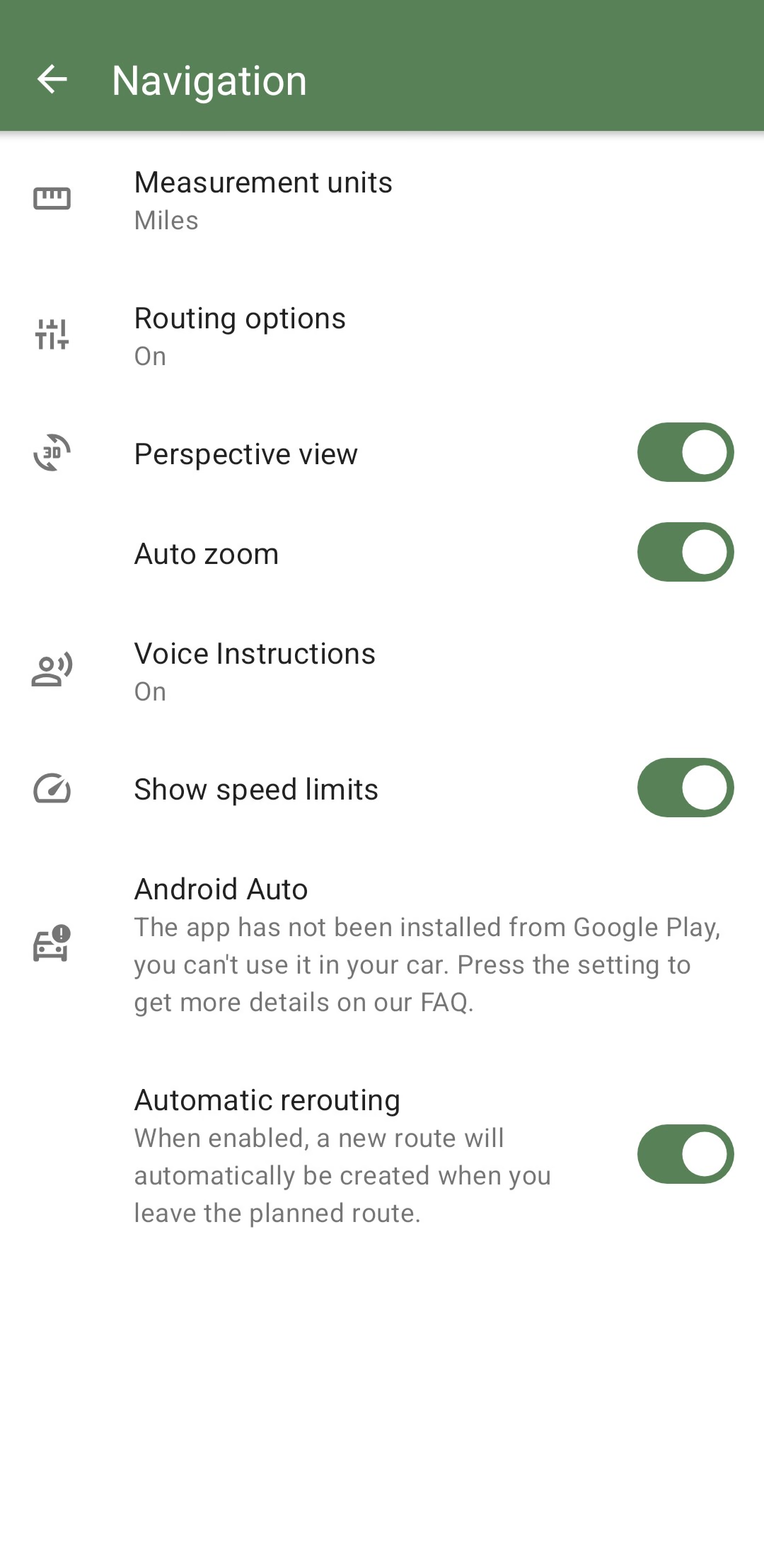
I recommend looking over the settings the first time you use the app. To see your CoMaps settings, click on the menu/sandwich icon and select Settings.

The settings menu is easy to browse through, but here are some settings you might want to know about right away:
- Choose between kilometers and miles -
Navigation>Measurement units - Turn on voice instructions, announce street names, and speed camera warnings -
Navigation>Voice instructions - Avoid tolls, stairs, etc -
Navigation>Routing options - Don't automatically reroute when you leave the route -
Navigation>Automatic rerouting - Larger map text -
Map appearance>Increase size for map labels - Show on lock screen -
Power management>Show on the lock screen
Places of interest (POIs): cities, shops, roads, and more
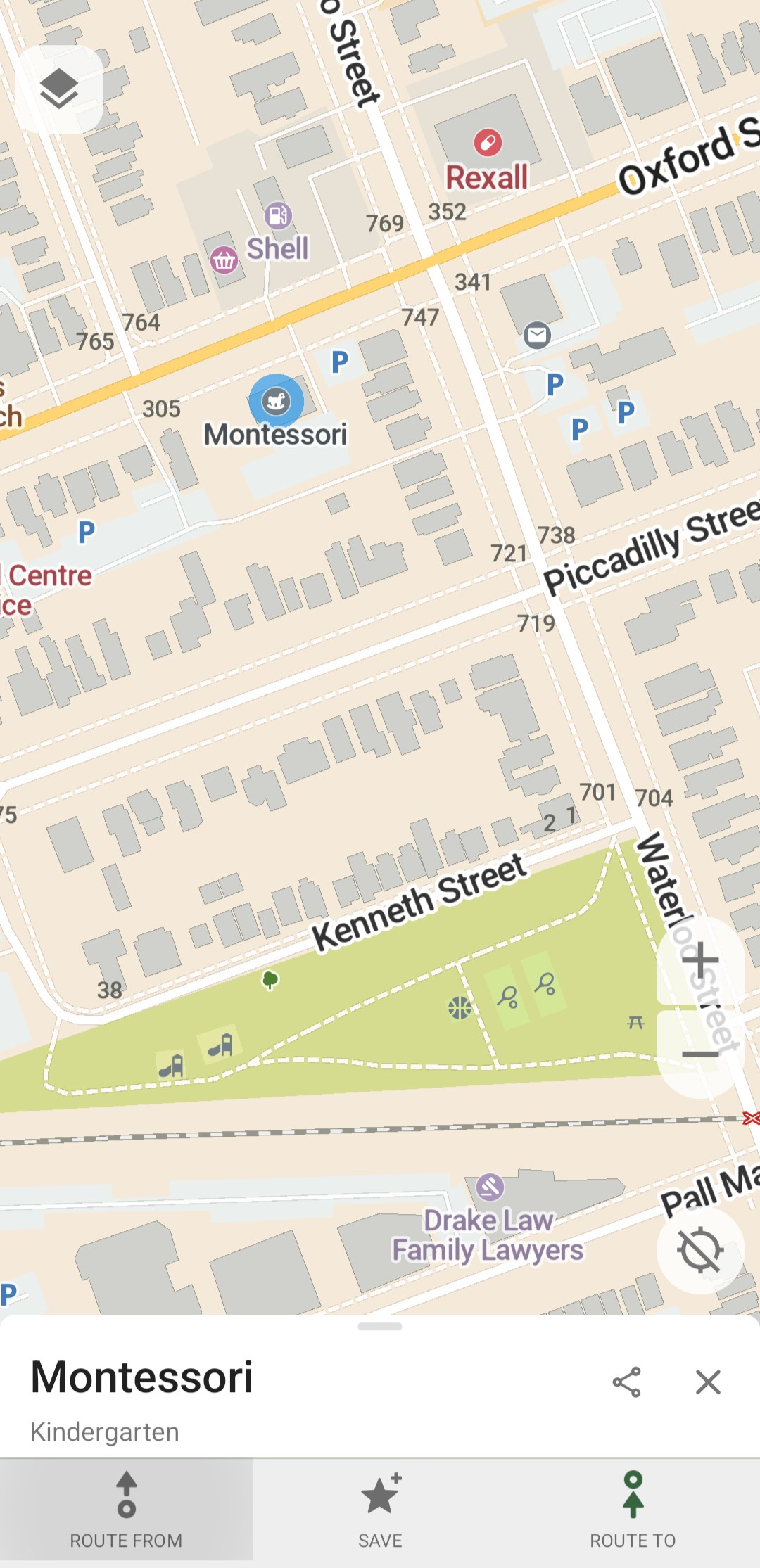
A POI in CoMaps is anything you can tap on the map.
How do I see details about a place ("point of interest", or "POI")?
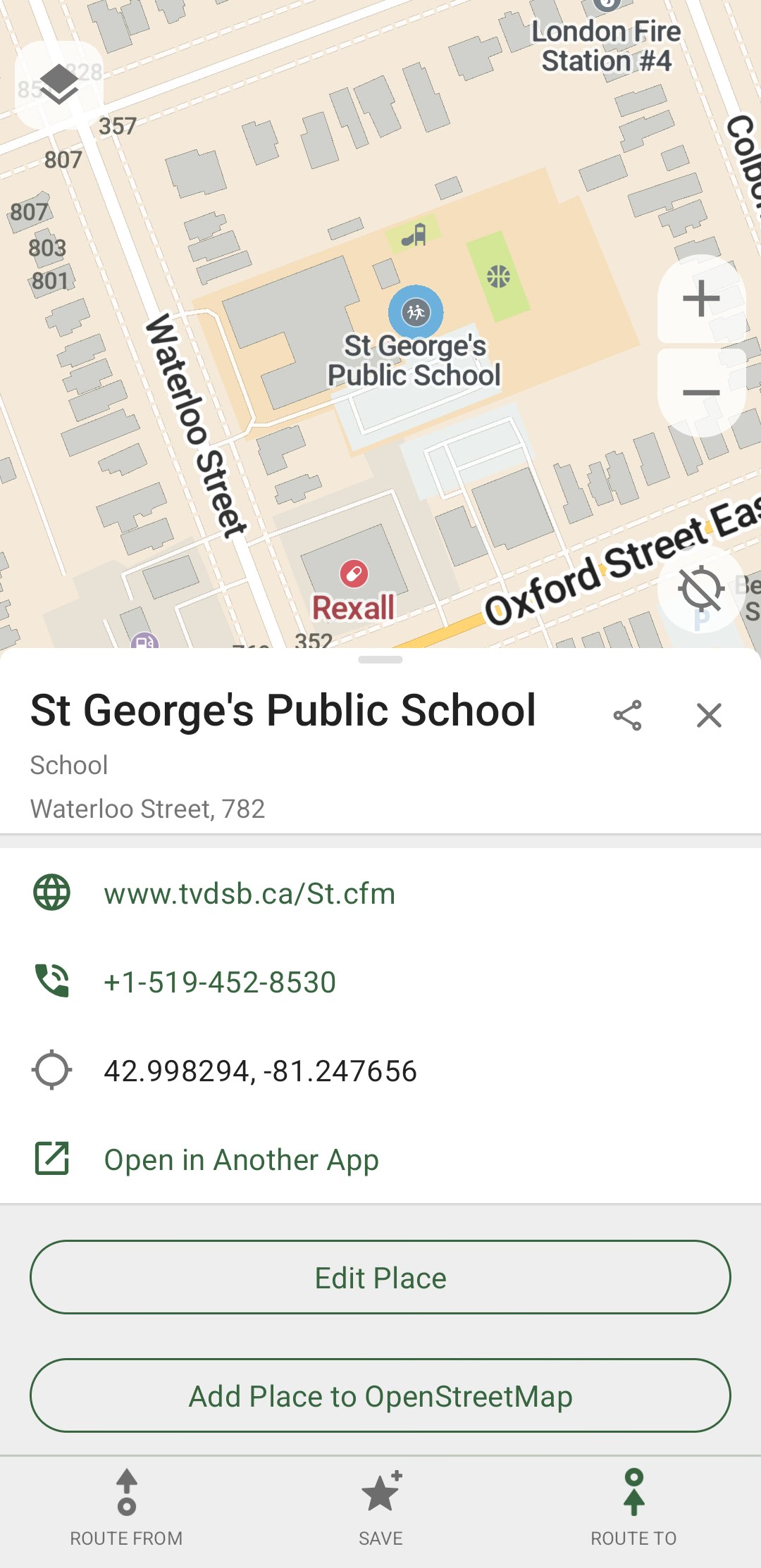
It's easy to see details about anything on the map! First tap on something and the POI dialogue will appear at the bottom of your screen, then tap on the title in the POI dialogue to expand it. In the POI dialogue, you can see opening hours, website links, and other details, where available. If something is missing and you know what should go there, please add it to OpenStreetMap!

If you have trouble tapping on a POI, try zooming in. Sometimes CoMaps will think you're trying to tap on a POI really close to the one you want to tap on. Zooming in usually helps!
How do I share a location with someone?
You can share any POI by taping on it and clicking the share button. Look for the share button in the top-right corner of the POI dialogue. If you want to share your current location, tap on your location arrow on the map and share that! Please note that this will only share the location where you were when you tapped, this won't allow anyone to follow where you are later.
How to navigate in CoMaps: route planning
How do I navigate from my location?
With your location service turned on for your phone, tap anything on the map and select ROUTE TO. If you've given CoMaps permission to use your location, the app will calculate a route to get you to that destination. If it doesn't immediately calculate a route, click on the target button on the bottom bar, which will appear, to navigate from your location.

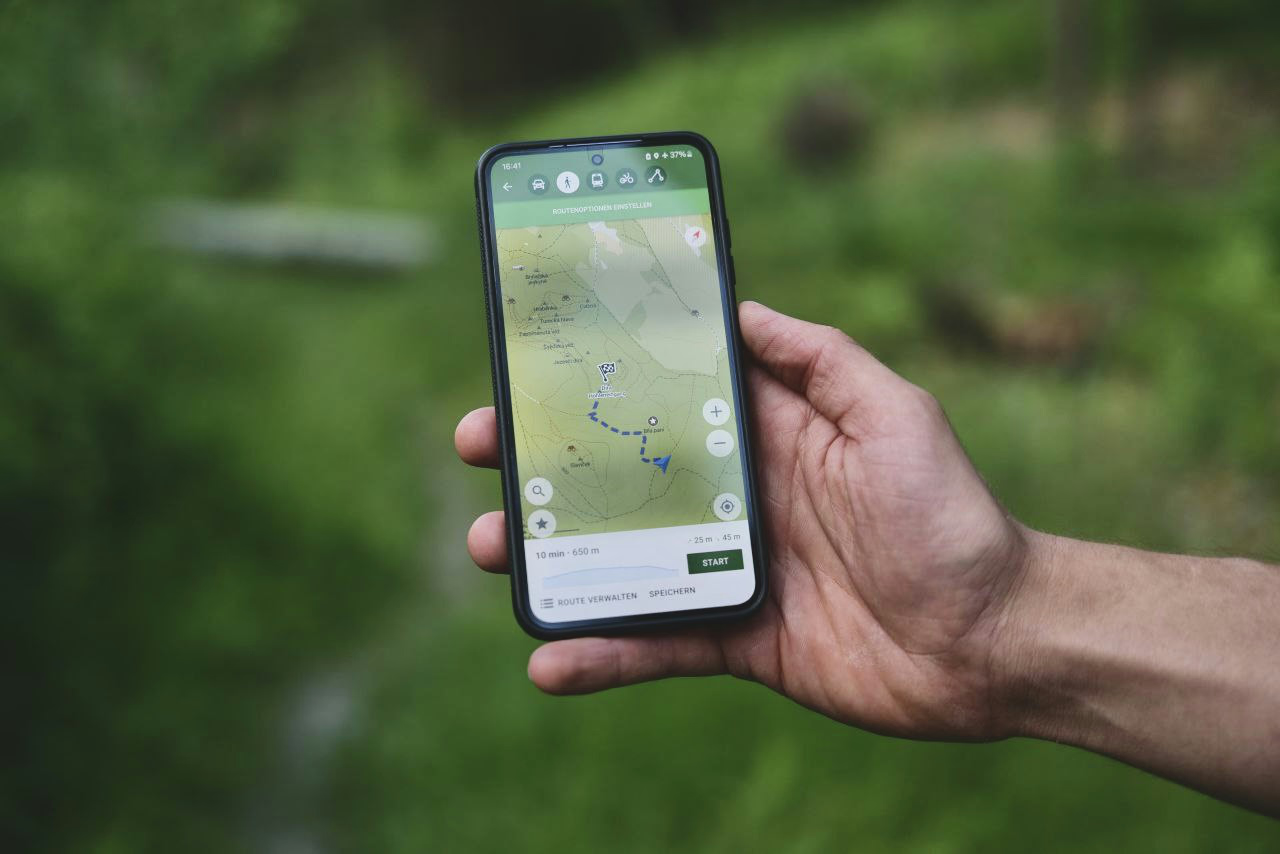
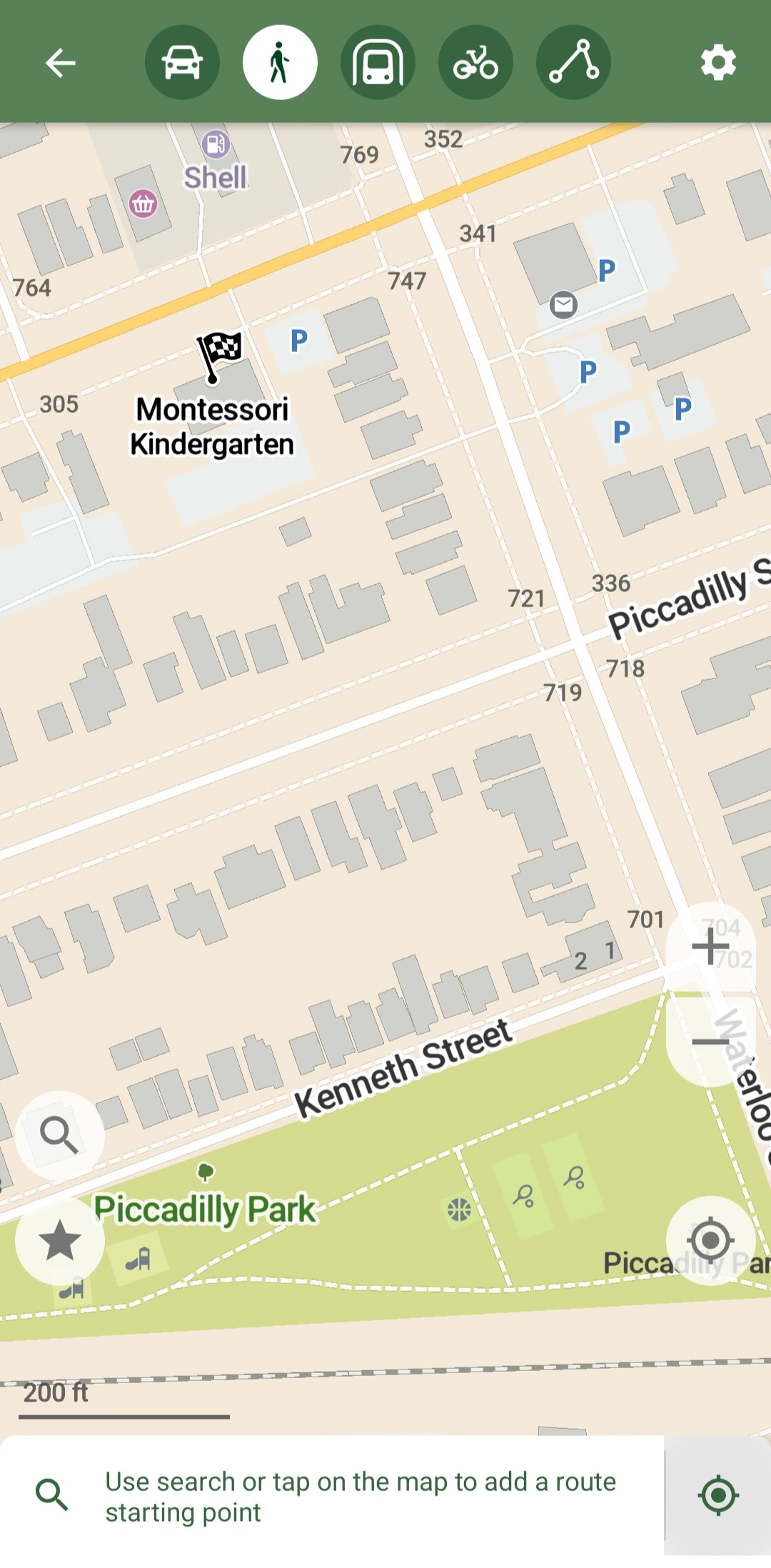
Make sure the navigation mode is correct for how you plan to travel. There are several navigation modes along the top of the screen, including driving and walking. If the navigation mode is correct, tap the green Start button to enter that navigation mode and get turn-by-turn directions.
How do I navigate from another location?
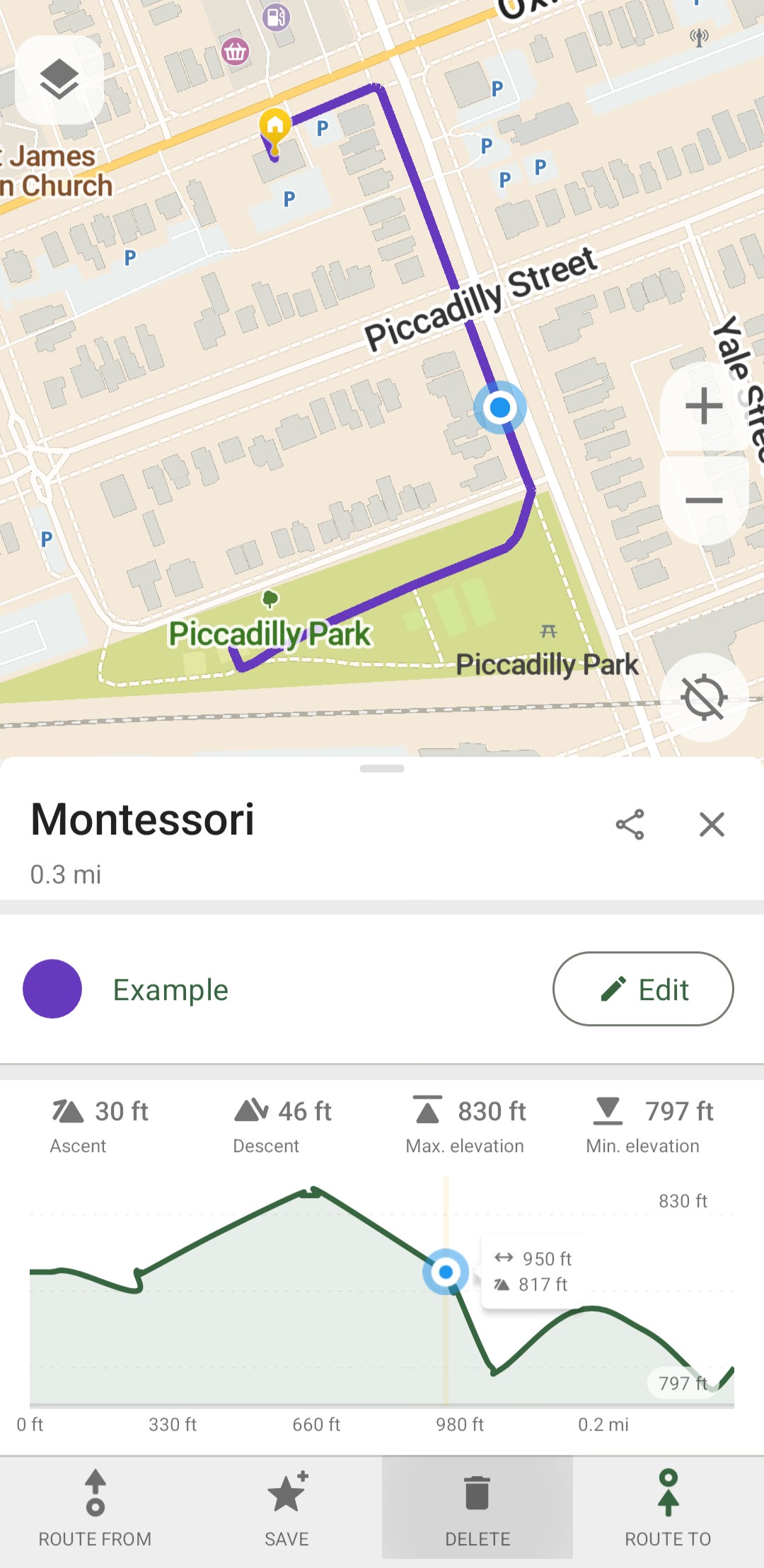
You can't currently use the navigation feature without turning on your location and using it as the starting point for navigation (see above). What you can do is plan a route between two points without your location even turned on. Here's how to do that:
- Select somewhere on the map and tap
ROUTE TO. - Select somewhere else on the map and tap
ROUTE FROM.

You won't be able to navigate this route in 2026, but here are some ways it could still be helpful:
- You want to know how long it would take to get from point A to point B.
- You want to visually see directions from point A to point B.
- You don't want to use the navigation feature, you just want to see a route on your map you can follow manually.
How do I add a stop in my route?
When you already have a route calculated, just tap on the place you want to stop and tap ADD STOP. This will update the route to take you there.
How do I rearrange stops in a route?
When you want to change the order of stops in your route, click the Manage Route button (this button is only available before you start navigating) to see all of your route points. Just press and hold on any route point and drag it to reorder your route!
Pro tip: you can swap any stop with your destination if you decide you want to arrive at that stop last.
How do I view turn-by-turn directions?
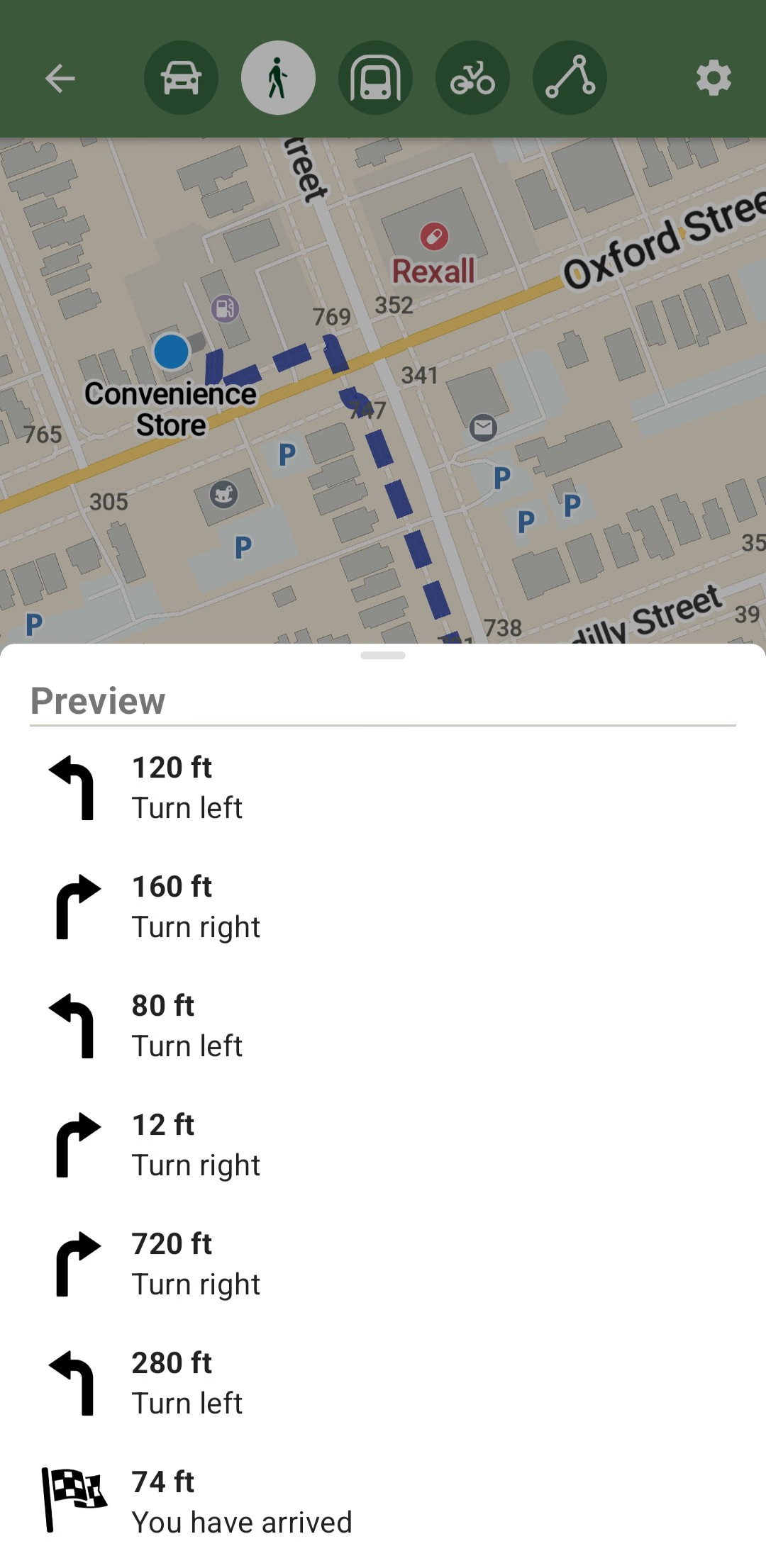
You can preview the turn-by-turn directions for a route by tapping the Preview button. The Preview button only appears after calculating a route, before you tap the Start button to navigate that route.

The preview feature is a great way to get directions for navigating from one place to another, even without turning on your location service (GPS).
Managing your favorites (also known as "pins" or "bookmarks")
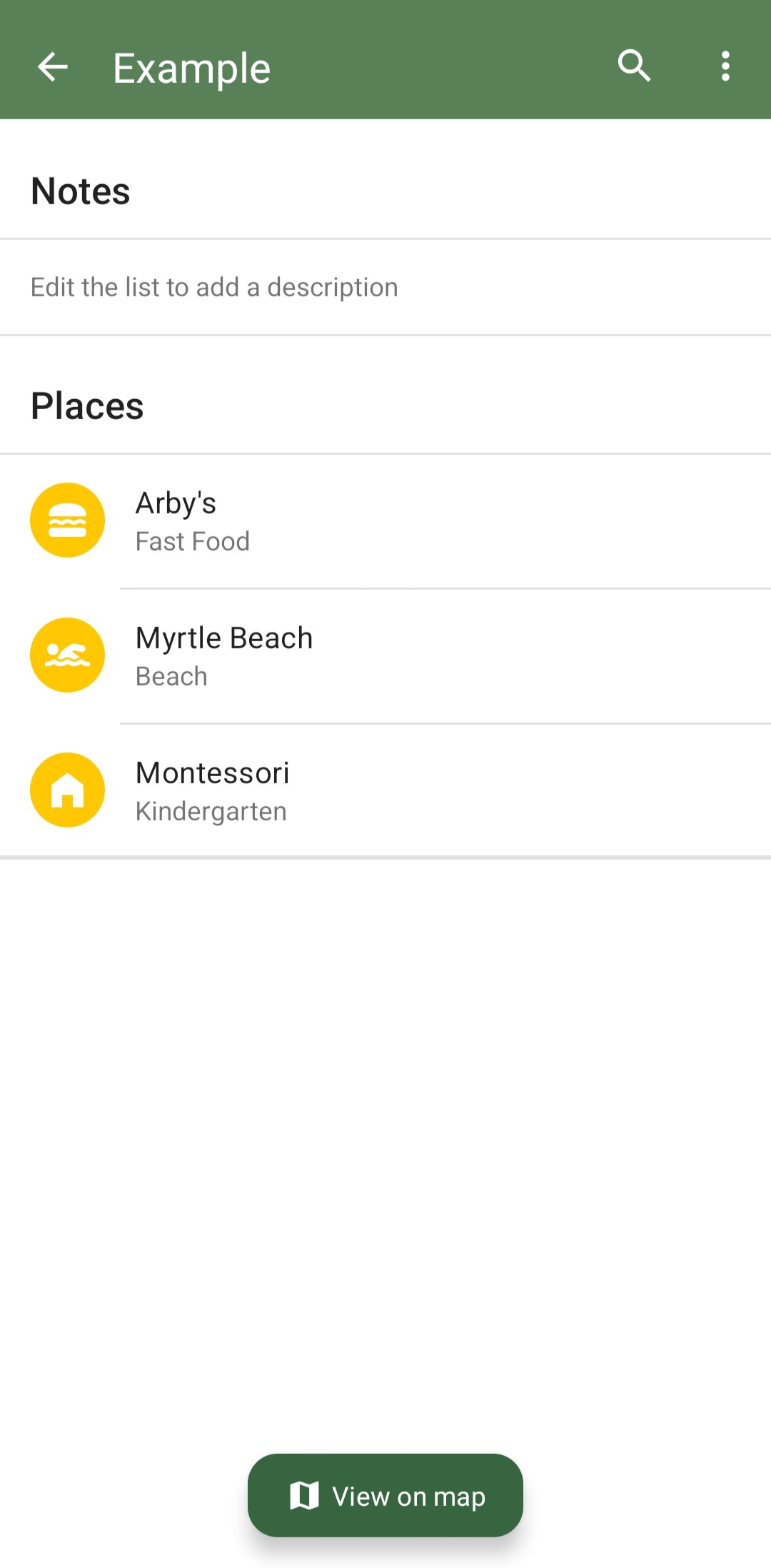
In CoMaps, we call pins/bookmarks and tracks "favorites". You can have multiple favorite lists for organization if you'd like.
How do I save a favorite or drop a "pin"?
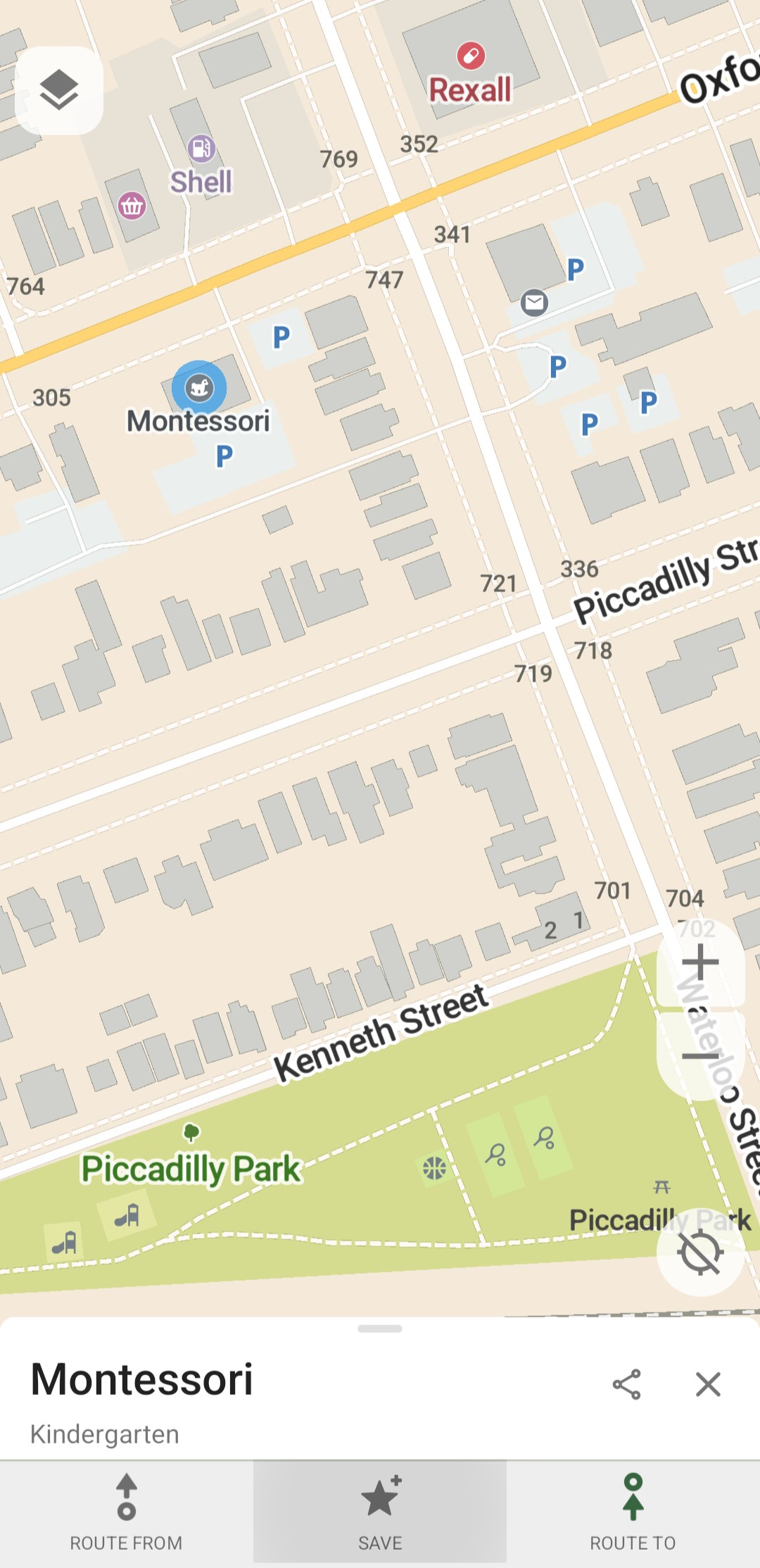
Tap on anything on the map. The POI dialogue will appear. Below the POI dialogue you'll find a bar with a SAVE button.

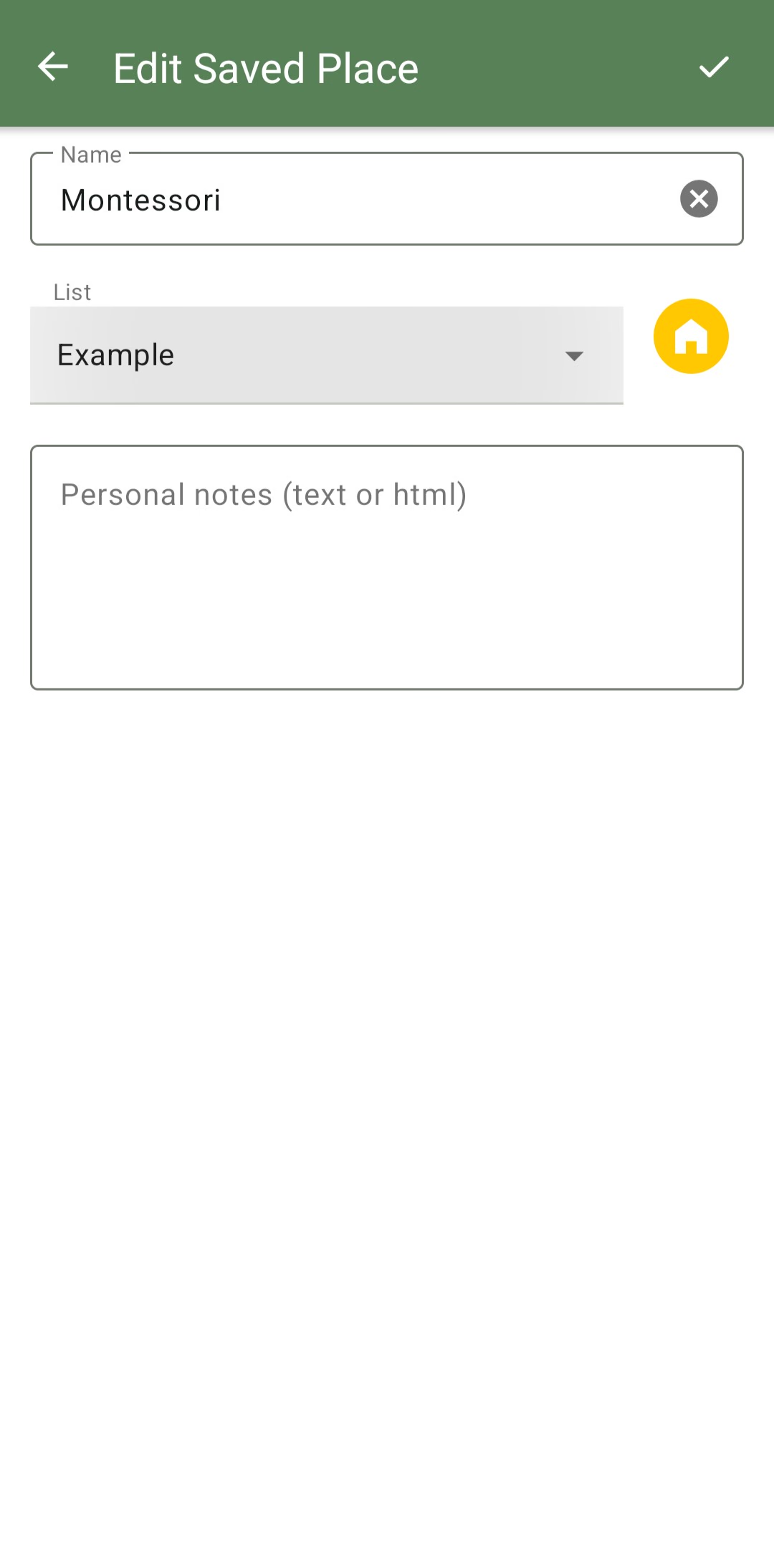
New favorites are saved in the last favorite list that you chose to save or move favorites to. You can always change the list a favorite is saved to by clicking on the place you favorited and then using the edit button to edit that favorite.
How do I save a track?
When you have a route calculated, you can save that route as a track by pressing the Save button.
How can I load a saved track to navigate along?
Following a favorited route isn't currently possible in 2026, but it's being worked on!
How do I manage my favorite ("bookmark" or "pin") lists?
Tap on the favorites button (star icon) to see your favorites lists in the Favorites menu.
- At the bottom of the list entries is an option to create a new list.
- Lists can be deleted, or toggled to show or hide their favorites' pins on the map.

How do I search through my favorites?
In Android you can search by opening the Favorites menu and tapping the search button (magnifying glass icon) in the top-right corner.
How do I move a favorite to another favorite list?
Tap on a favorite and it will show on the map. Tap the Edit button and use the List select field to choose which favorites list you want this favorite to be in.

How do I delete favorites?
You can delete a favorite from the favorite list directly. In Android, touch-and-hold on a favorite, then select Delete. In iOS, use a swipe to delete it.
When you have selected a favorite on the map, there's a Delete button to remove the favorite as well.
How do I delete a track?
Tracks can be deleted from the favorites screen or by selecting the track on the map. To delete a track with the track selected, simply tap the DELETE button.

To delete a track from the favorites screen, go to the favorite list it's saved to. In Android, touch-and-hold on a track, then select Delete. In iOS, use a swipe to delete it.
What happens to my favorites and tracks when I uninstall CoMaps?
They are deleted. You can preserve them by exporting your favorites and tracks before uninstalling CoMaps in 2026.
Searching
You can search the map by tapping on the magnifying glass icon. Either enter a search query in the search box, or use one of the predefined search categories.
What do I do when I'm having trouble finding something with search?
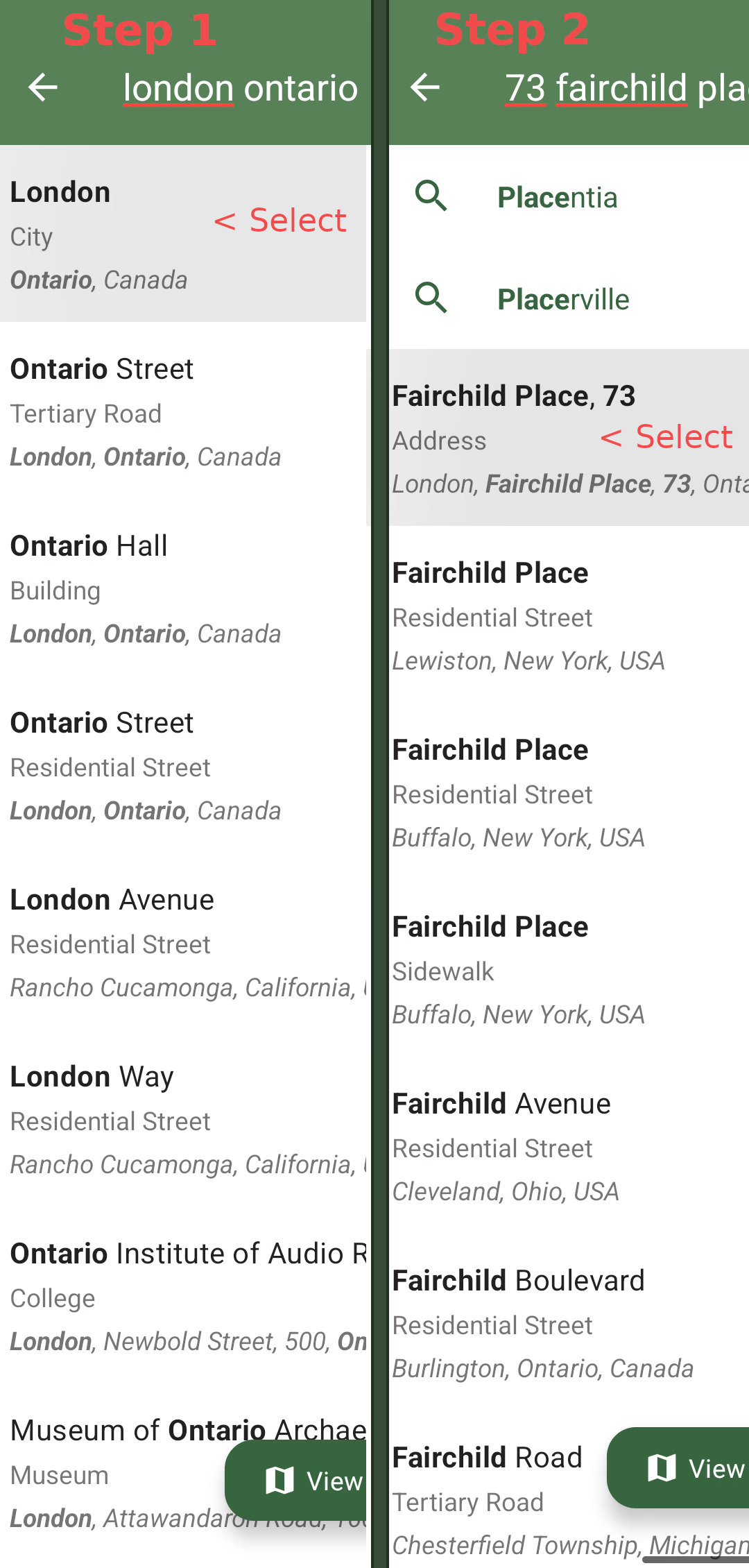
If you're having trouble finding a location in 2026, realize that search works based on what part of the world you're looking at. If you're looking at the US, searching for a location in France may, or may not, work. You may also find there are too many places with the same name.
What often helps is breaking up your search query into different searches, starting with the least specific detail. When you can't find something, consider searching for these in order, and moving the map over them before searching the more specific thing:
- Country
- State/Province
- City
- Street address/place name

Generally, avoid using a complete address in search: it might not find any results. Giving too many details could confuse CoMaps, and certain address features (like ZIP+4 in the US) may not be supported yet.
Note: We're always working on improving CoMaps, and search is no exception! If you want to help us improve search, please join us on Zulip!
More CoMaps resources to check out
To learn more about CoMaps, I recommend the following:
- Download the app and play around with it.
- Look through our FAQ on the Support Page.
- Get connected to a CoMaps community through the Community Page, to ask questions and engage with other users.
Remember, CoMaps is powered by the community. You can give back by helping other users like yourself!
I hope you've learned something new from this beginners guide. Happy journies!